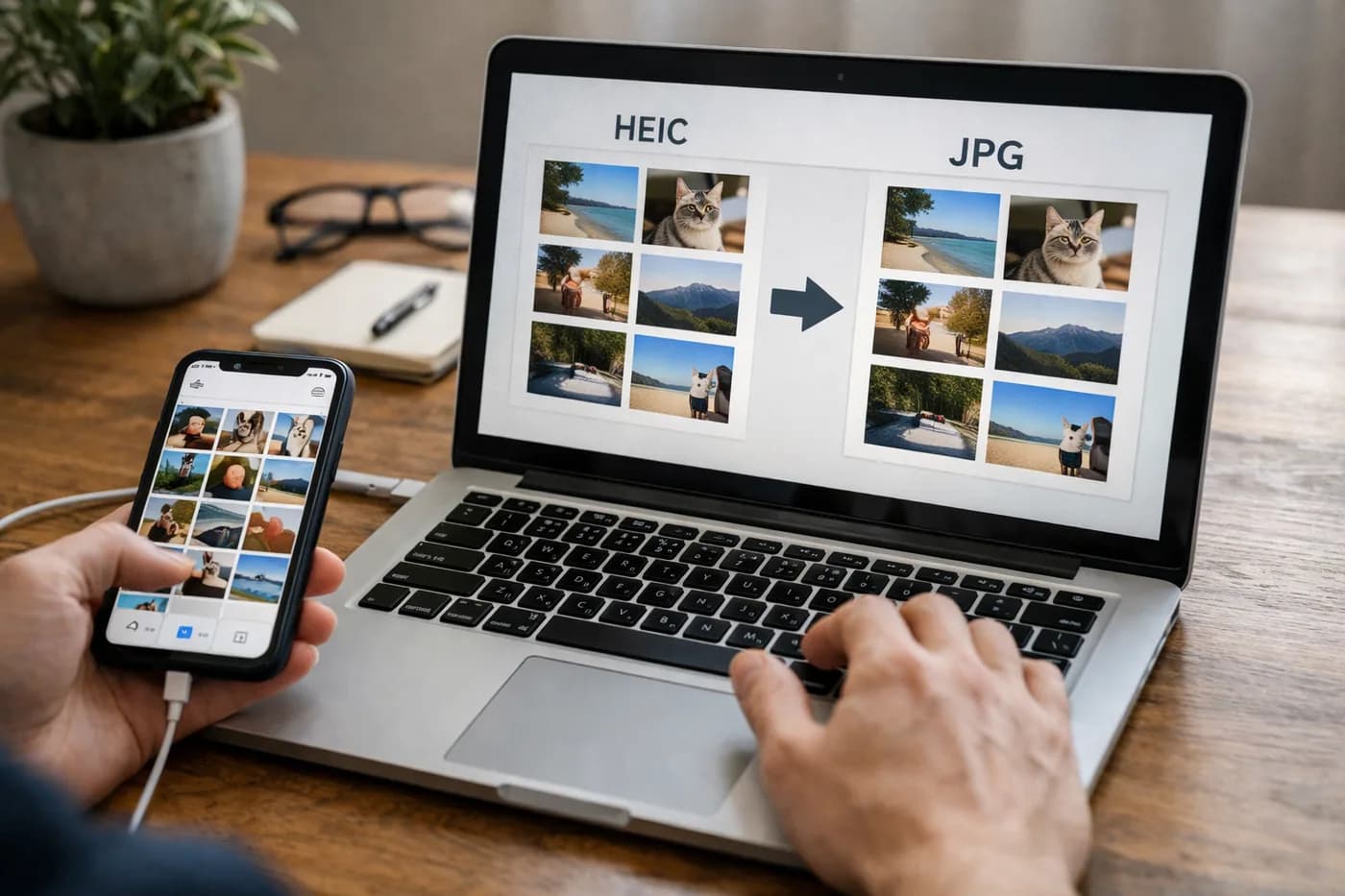
"How to convert iPhone HEIC photos to JPG" comes up constantly once you try to open your iPhone pictures on Windows, upload them into older websites, or send them to someone not using Apple gear. Sure, HEIC is efficient in terms of space, but this format tends to cause problems when moving photos across different platforms. If you want to convert your HEIC photos to JPG online, you can do it for free, straight from your browser, and there’s no need to install extra programs.
If you’re using an iPhone 7 or later, you might have noticed your images are saved in HEIC (High Efficiency Image Coding) by default. This saves a noticeable amount of storage and still keeps your photos sharp. Unfortunately, many apps and websites—including Windows photo viewers—only support JPG or PNG. When you try to upload HEIC files, sometimes they just fail to load, or show a blank preview instead of your photo.
How to convert HEIC photos to JPG online for free
If you want quick results without installing anything, the most convenient approach is an online HEIC to JPG converter. Naiara’s free converter lets you switch from HEIC to JPG for files up to 50 MB, and it doesn’t ask for sign-ups. Here’s the process:
- First, get your photos onto your computer—using a cable, AirDrop, iCloud, or by sending them via email.
- Open the converter and upload your HEIC images.
- Download the converted JPGs and use them anywhere you like.
Step-by-step guide to converting HEIC to JPG
- Move your photos from iPhone to PC: Use a USB cable with File Explorer, AirDrop to a Mac, or grab them directly from iCloud.com.
- Open the HEIC to JPG converter: Upload as many HEIC files as you need—no installation, and your uploads are erased after conversion.
- Download your JPG photos: Pick the download location, and your images are ready for any use: on Windows, uploading to websites, or sharing via email or messaging.
If you also need to reduce image size, maybe for a web submission or to send by WhatsApp, Naiara’s image compressor works with HEIC files too and outputs optimized JPGs, all within your browser. Your photos never leave your device.
Can I convert HEIC to JPG directly from my iPhone?
You don’t actually need to go through a computer if you’d rather work on your iPhone. By opening Naiara’s site in Safari, you can upload a HEIC photo and download the JPG version in seconds. That way, it’s ready for email, social media, or quick sharing in any app that expects a JPG.
Extra tips for managing HEIC and JPG photos
- Change your iPhone settings: If HEIC isn’t working for you, go to Settings > Camera > Formats and switch to "Most Compatible." New photos will be saved in JPG, and you won’t need to convert them again.
- Lossless compression: When image size is critical, Naiara’s image compressor can help shrink JPG, PNG, WebP, AVIF, and HEIC files while keeping quality high.
- Restore old photos: For scanned pictures in HEIC that you’d like to enhance, see the Practical Guide to Restoring Old Photos with AI.
- Colorize black and white photos: Curious about colorizing vintage images? Try the instructions in this tutorial on colorizing black and white photos online with AI.
Why convert HEIC to JPG?
Switching your photos from HEIC to JPG lets you:
- View and edit them on Windows, Linux, Android, and virtually any software or device you can think of.
- Upload without errors to social networks, government websites, online forms, or photo services.
- Share with relatives or colleagues who aren’t using Apple hardware.
- Create albums or print photos—no format issues to get in the way.
Since JPG is still the universal image format, converting makes your photos easy to open everywhere.
Frequently Asked Questions about converting HEIC to JPG
Why can’t I open HEIC photos on Windows?
Windows doesn’t always come with native support for HEIC, so those photos may not load at all. When you convert to JPG, your images become usable right away—no extra codecs or viewers needed.
How can I convert HEIC to JPG on my iPhone without apps?
By using an online converter like Naiara’s in Safari, you upload your HEIC and get the JPG instantly—no apps to install, no accounts to create, and the process takes just a moment.
Will converting HEIC to JPG reduce image quality?
Most users won’t see a difference. Naiara’s converter keeps image quality as close to the original as possible, so in practice, photos look just as sharp after conversion.
Is it safe to convert HEIC to JPG online?
With a service like Naiara, yes—the platform deletes your images after conversion and never asks for registration, so your photos stay private.
Can I convert multiple HEIC photos to JPG at once?
Batch conversion is available. Naiara lets you process up to five photos with the free tier, or unlimited files if you subscribe to Naiara Plus. If you have a large batch, just upload the next group after finishing the previous one.