Restoring old photos with AI has never been easier thanks to tools like Naiara. If you have family pictures that are aged, damaged, black and white, or blurry and want an automatic, hassle-free fix, this guide will walk you through each step and what to consider for the best results.
What do you need before starting?
Before you start the AI photo restoration process, make sure you have the following:
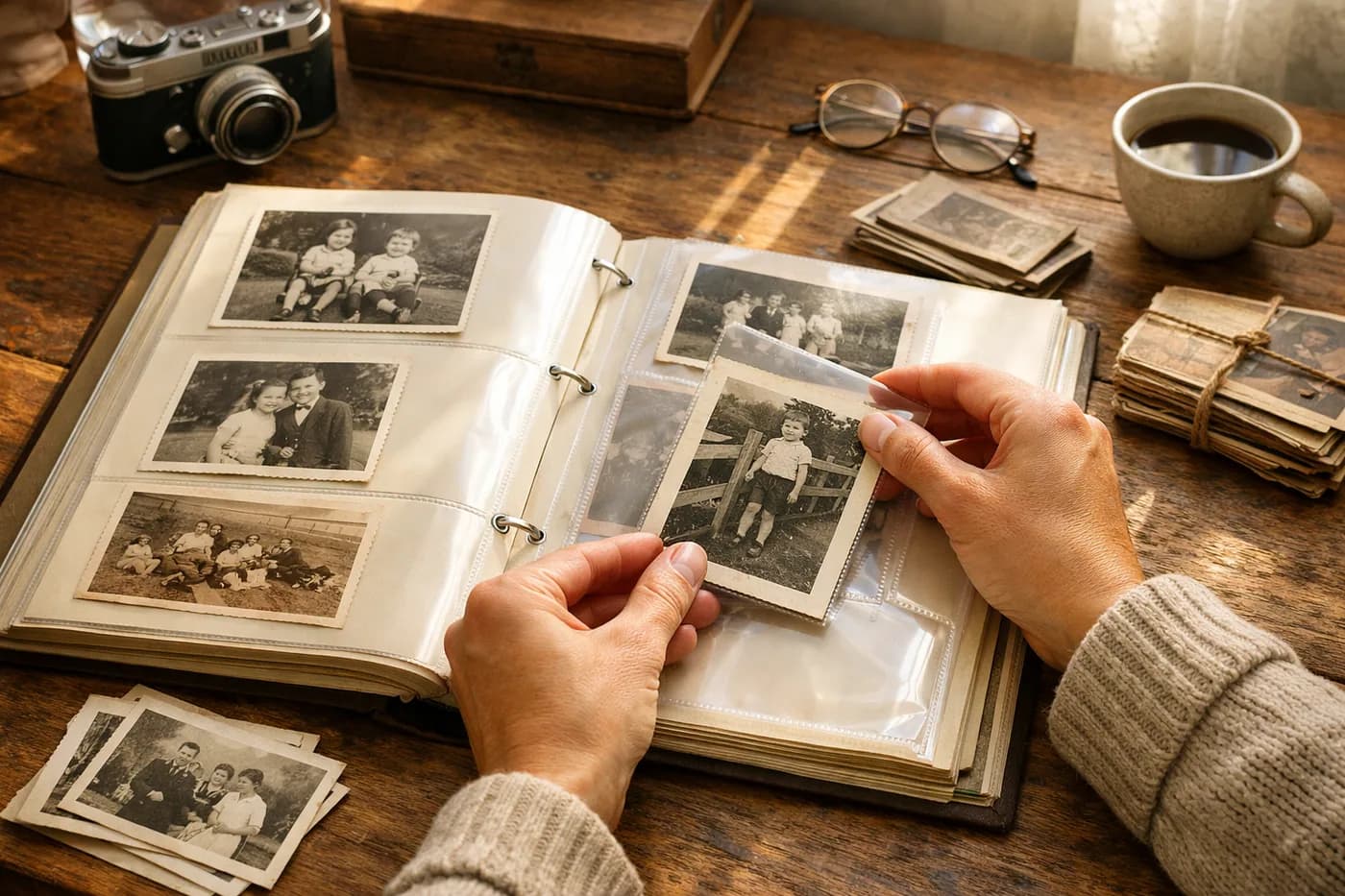
- Digitized photo: If your photo is on paper, scan it or take a picture with your phone using the tips in this guide to digitizing old photos. The quality of your starting image greatly affects the final result.
- Internet access: AI restoration happens online, so ensure you have a stable connection.
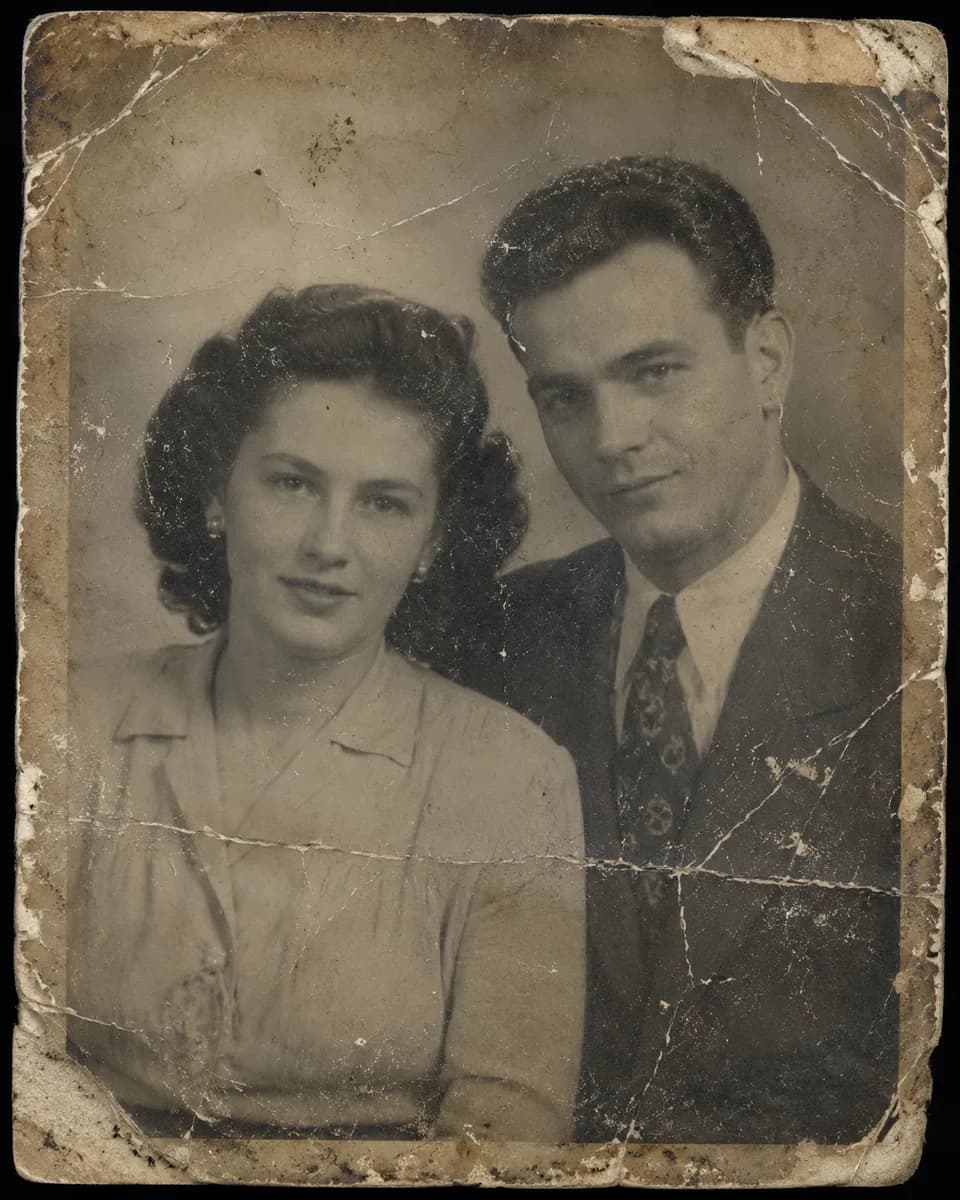
- A clear idea of the damage: Identify the main issues with your photo. Is it torn, stained, blurry, faded, or are there unwanted objects you want to remove?
Step 1: Upload your photo and let AI detect the damage
The first step to restore old photos with AI is to select the image you want to recover. Naiara automatically detects scratches, stains, tears, blurry areas, or faded colors. Thanks to its technology, you don’t need to adjust anything manually—the AI identifies and repairs the damage with no technical knowledge required.
Step 2: Choose the restoration type that suits your photo
Once your image is uploaded, Naiara lets you apply different enhancements based on your photo’s condition. For example:
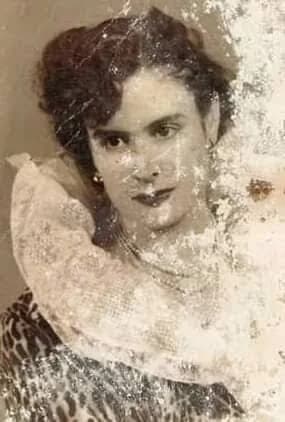
- Repair physical damage: Remove scratches, cracks, moisture stains, or folds.
- Enhance sharpness and resolution: Perfect for blurry or low-quality photos.
- Restore color: If your photo is faded or black and white, the AI can colorize it realistically.
- Remove objects or people: Easily erase unwanted elements in seconds.
This way, you can turn a heavily damaged photo into a refreshed, vibrant memory.
Step 3: Fine-tune and compare before and after
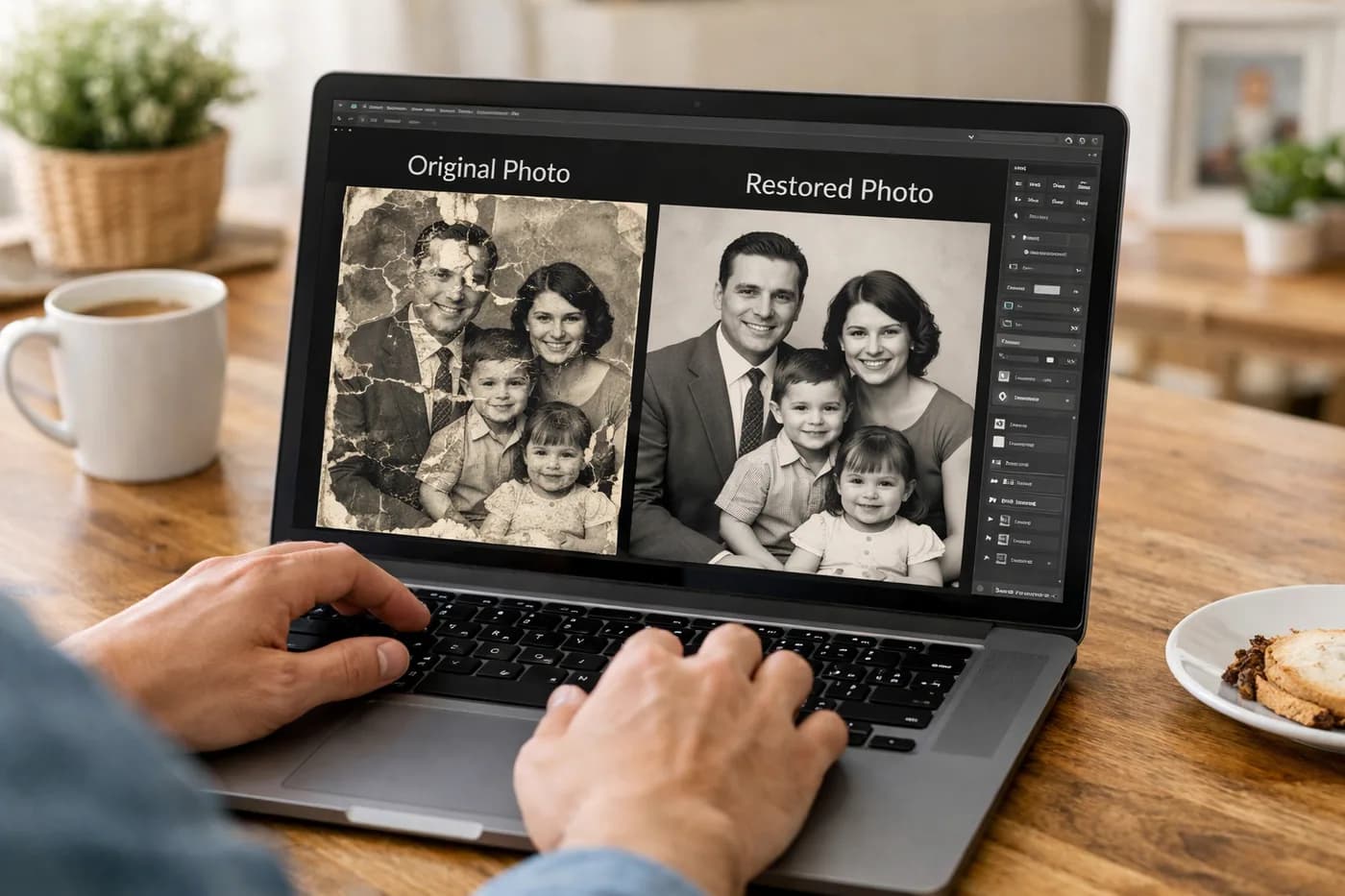
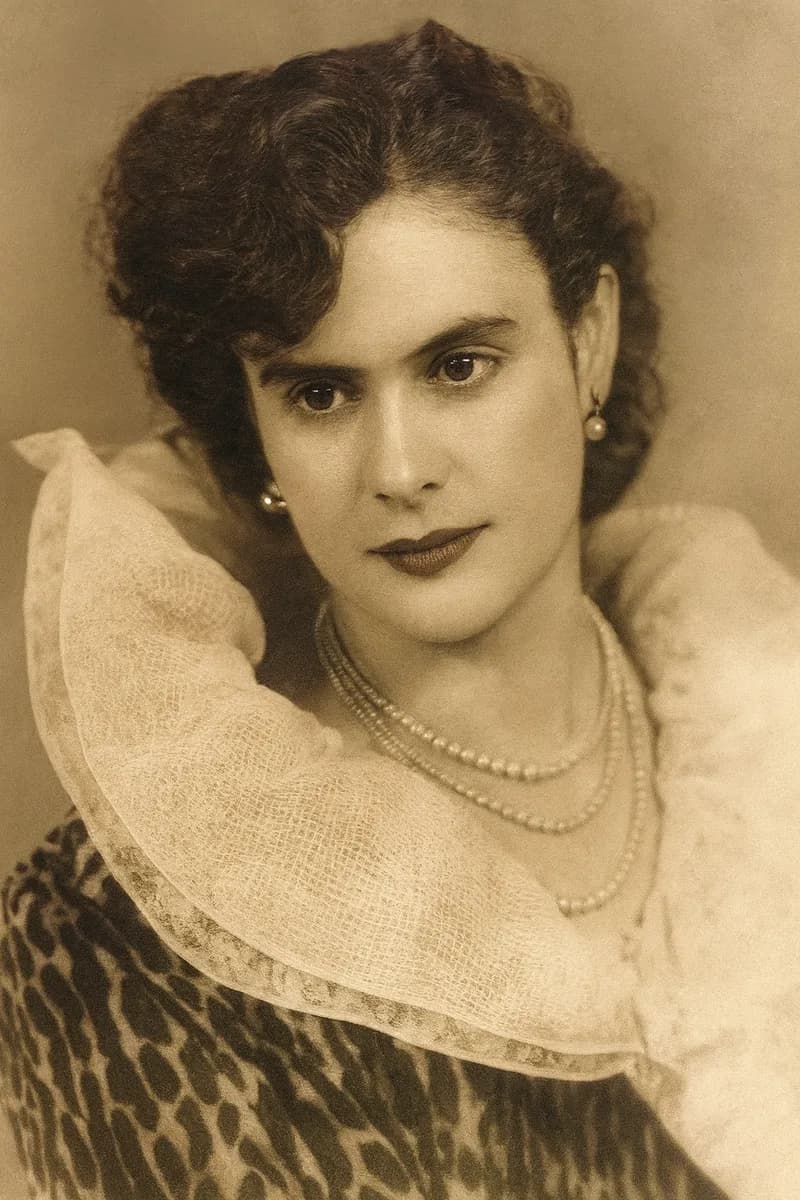
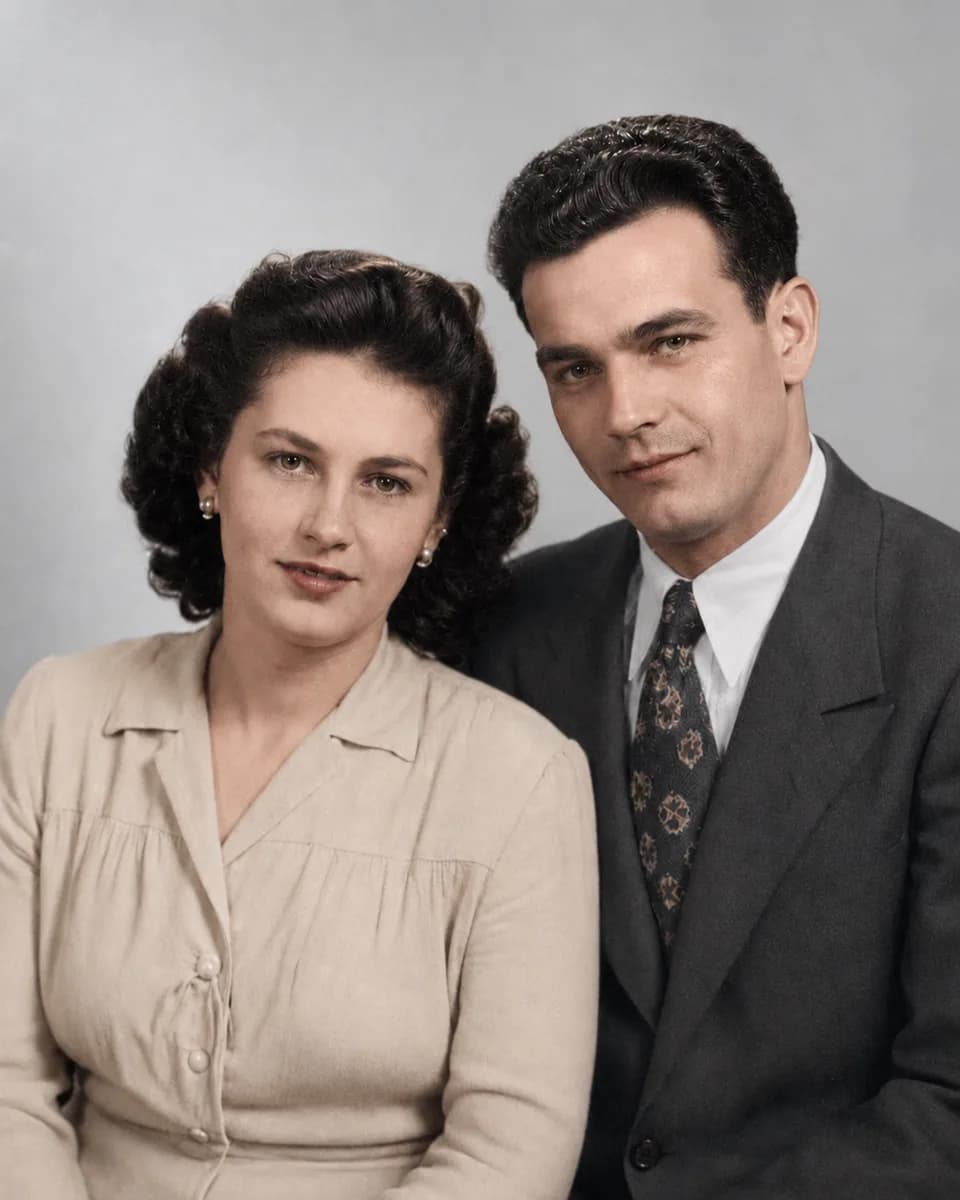
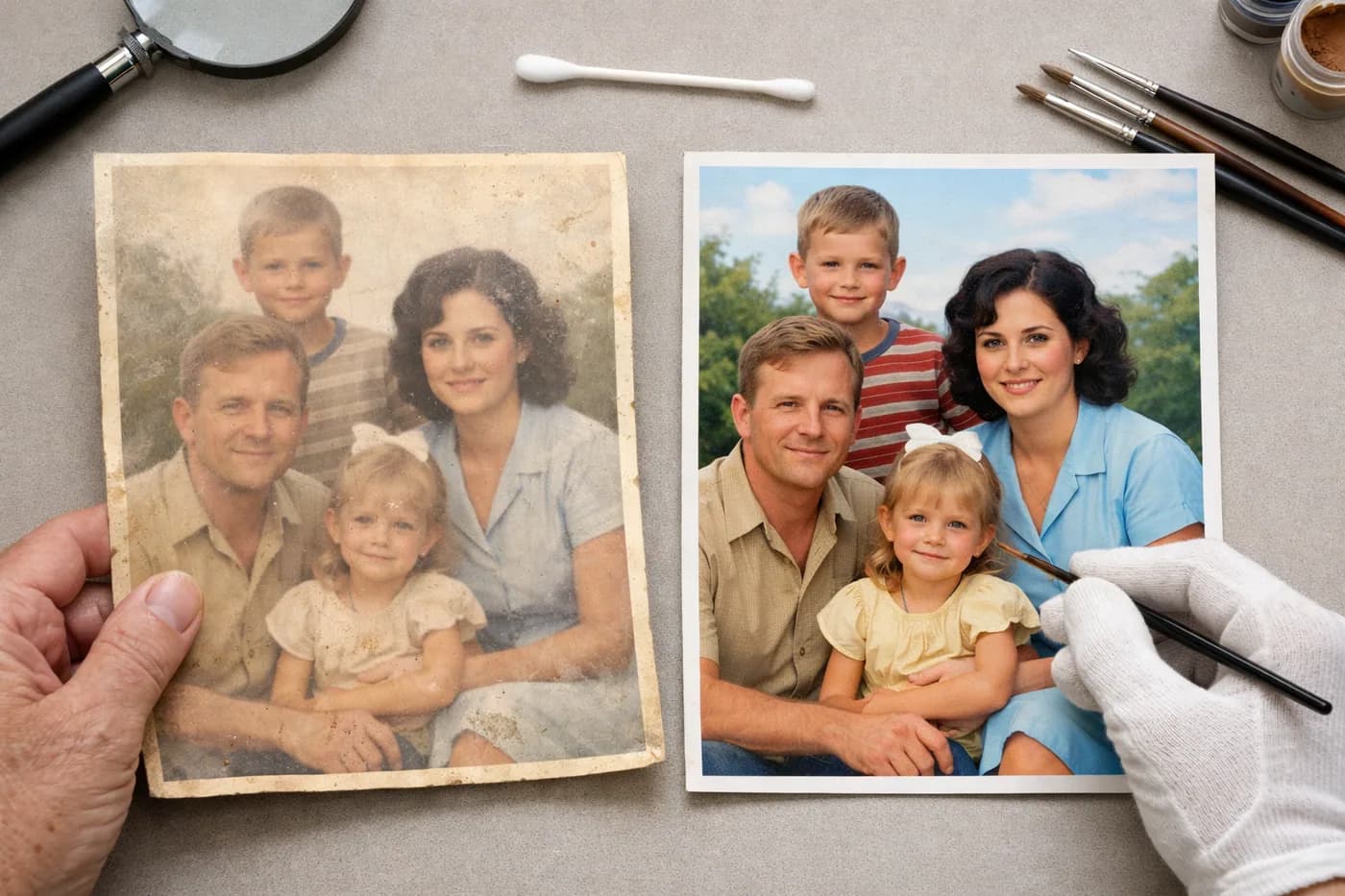
Once the restoration is ready, use the before-and-after slider to compare the result with the original photo. This step is crucial to decide if you need further enhancement (like sharpening or removing another object) or if your image is ready to download.
Step 4: Download and save your restored photos
When you’re happy with the result, you can download the restored image in high resolution. Naiara automatically saves each restoration in your private history, so you can revisit or download them anytime. If you want to restore multiple photos, check out the tips for recovering entire albums and save with credit packs.
Step 5: How to know if your restoration looks good
A good AI restoration should:
- Recover details without introducing odd artifacts or blurry patches.
- Keep faces and expressions natural-looking.
- Show consistent colors (especially in colorized photos).
- Not erase important information.
If you’re unsure, compare your result with other real restoration examples or check the guide to revitalizing old photos with AI.
Common mistakes and how to avoid them
- Uploading photos that are too small or blurry: While AI can enhance resolution, the final quality still depends on your original image.
- Cropping too much when scanning: Always leave a border around the photo to avoid losing details.
- Overusing filters: If your photo looks artificial or the colors seem off, try softer adjustments.
- Not saving the original photo: Always keep the original file as a reference.
Want to restore lost color or boost the quality of your old photos for free? Take advantage of your first free restoration and see the power of AI on your most treasured memories.
Frequently asked questions about restoring old photos with AI
How do I restore old photos with AI?
You just need to digitize your photo, upload it to a platform like Naiara, and let the AI detect and repair the damage automatically. No technical skills required, and you can compare before and after to make sure you’re happy with the result.
Can I recover a badly damaged or blurry photo with AI?
Yes, artificial intelligence can repair tears, stains, scratches, and improve the sharpness of blurry photos. The result depends partly on your scan quality, but it’s often impressive even for very damaged images.
Is it possible to restore old photos with AI for free?
With Naiara, you can restore one photo for free with no credit card required. This lets you see if the solution fits your needs before buying credits for more restorations.
How do I know if my restored photo is good enough to print?
AI increases the resolution of old images, allowing for crisp prints in standard formats. You can check out the options for printing restored photos if you want to decorate or gift your memories.
What’s the difference between restoring with AI and doing it manually?
AI automates the process and is much faster than manual restoration, which requires editing skills and lots of time. For complex cases or to learn more, you can read the comparison between manual and AI restoration.