To remove person from photo is easier than ever thanks to AI-powered tools. If you have a special picture featuring someone you'd rather not see, you can erase them in seconds—no tech skills required, from any device.
What do you need before you start?
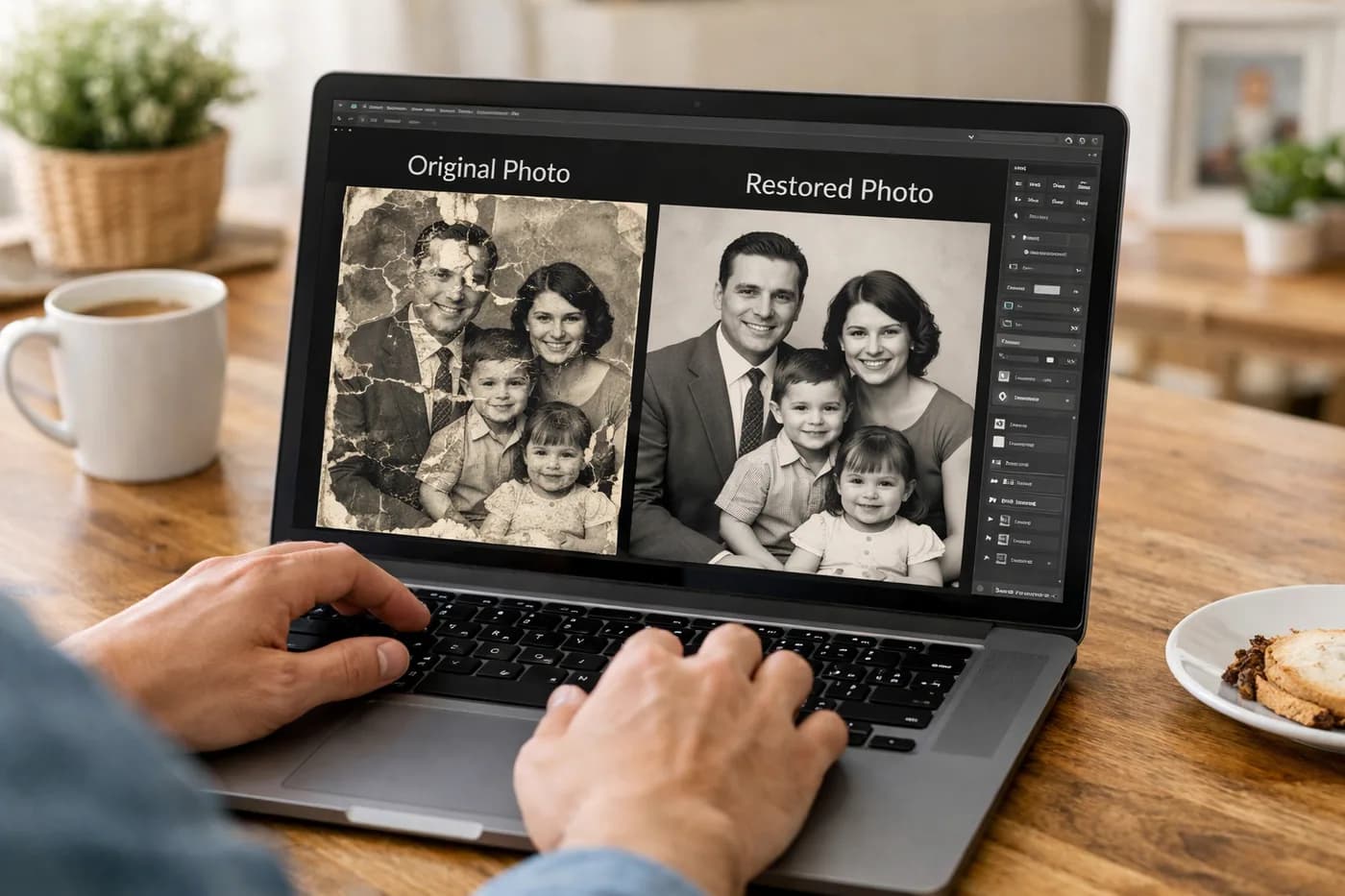
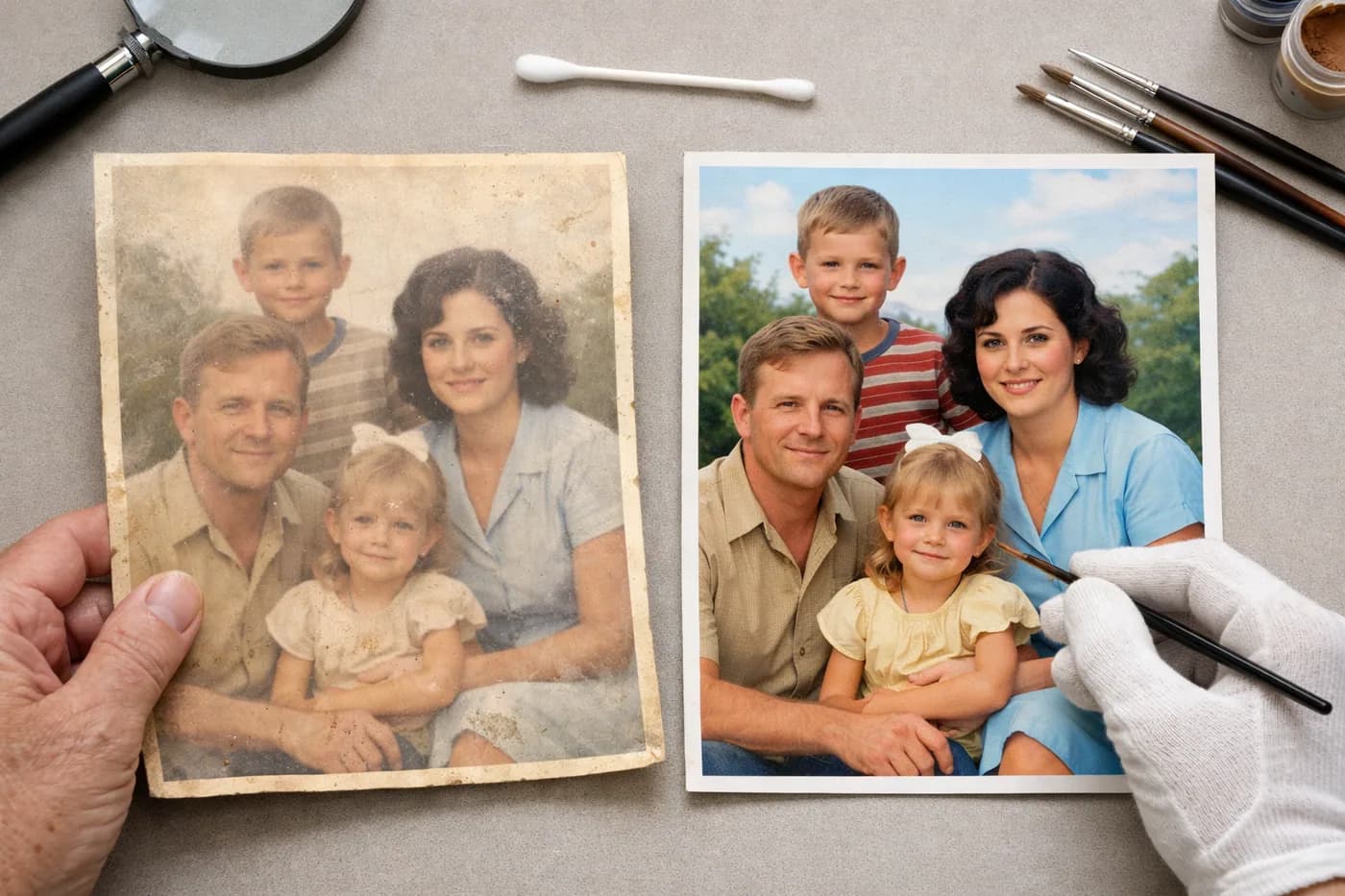
To remove a person from a photo online, first choose the image you want to edit. Make sure your photo is in digital format (JPG or PNG). If it’s old or damaged, consider restoring it first for the best results. For blurry, scratched, or black and white images, check out the guide to restoring old damaged photos or the step-by-step guide to colorizing black and white photos online.
Start by opening an online AI tool like Naiara and uploading the photo you want to edit. There’s no need to install software or create an account—just select your image and upload it to the secure, private web platform.
Step 2: Select the person you want to remove
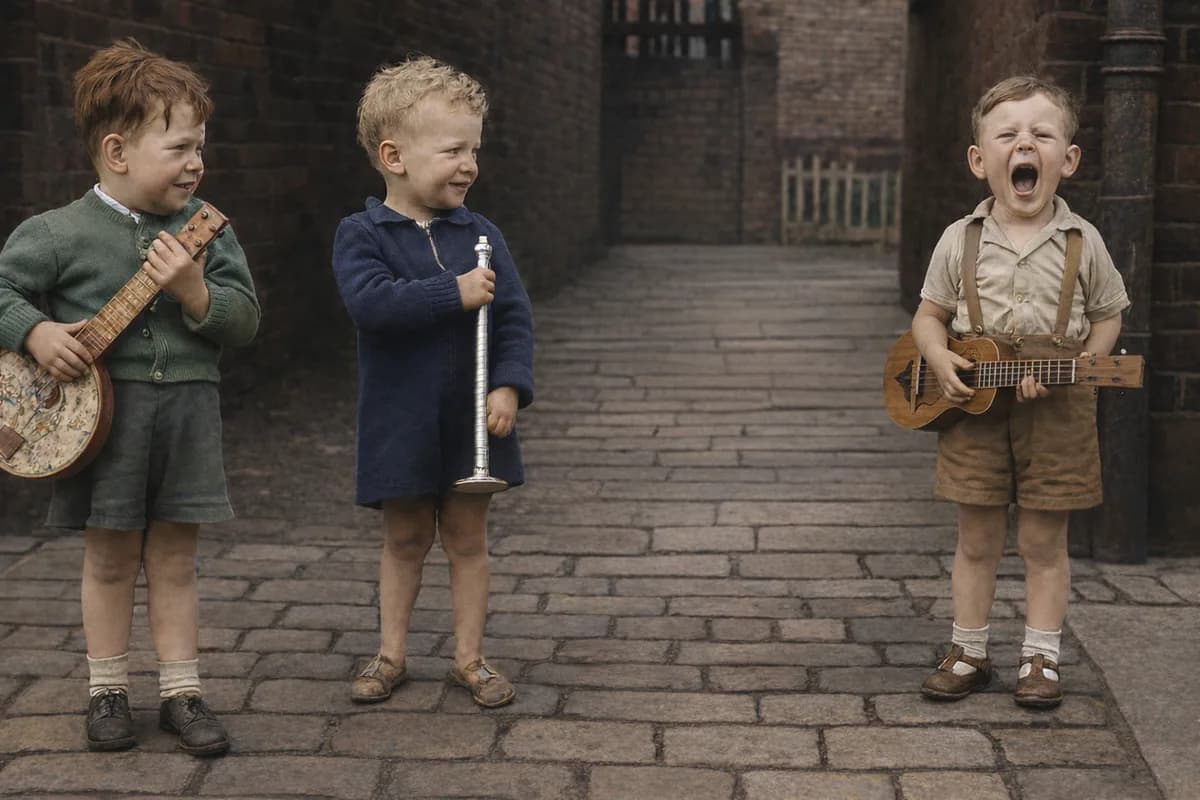
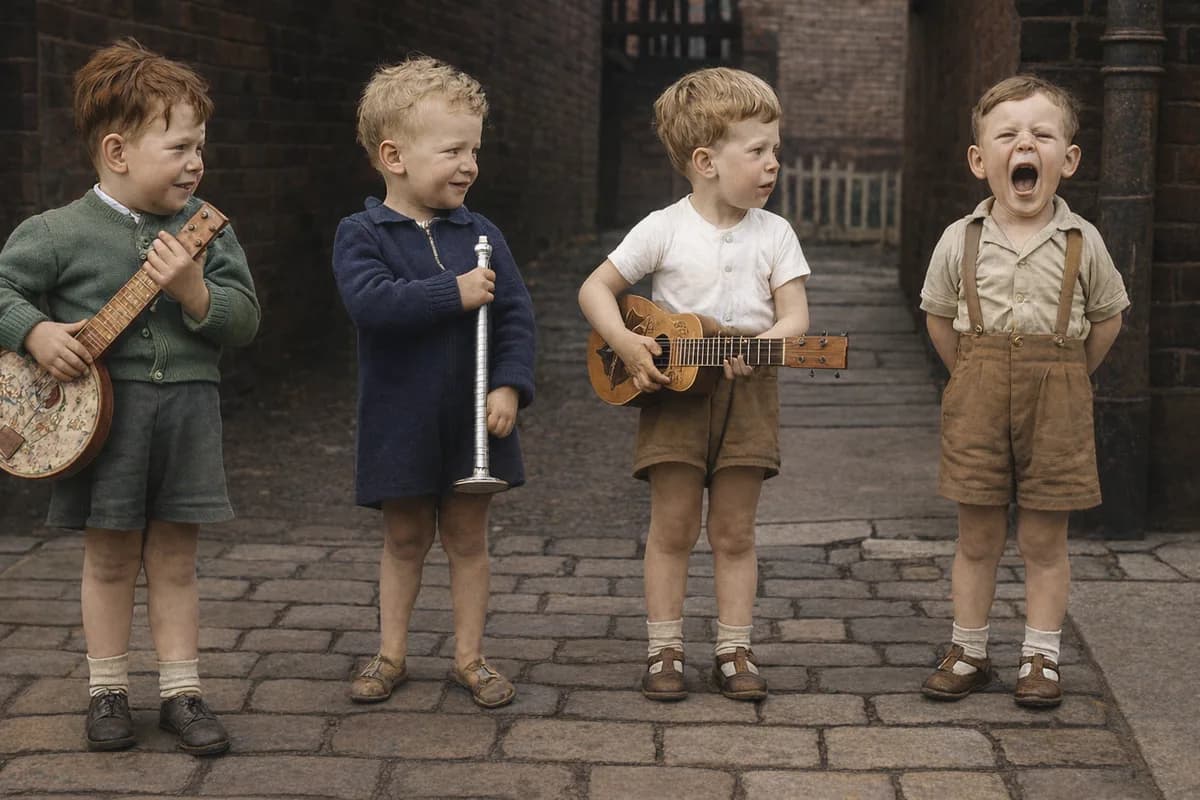
Once your photo is uploaded, use the "remove person or object" feature. Simply highlight the area with your finger (on mobile) or mouse (on desktop) where the person is located. The AI will automatically detect and erase the figure, filling in the background naturally.
Step 3: Review and adjust the result
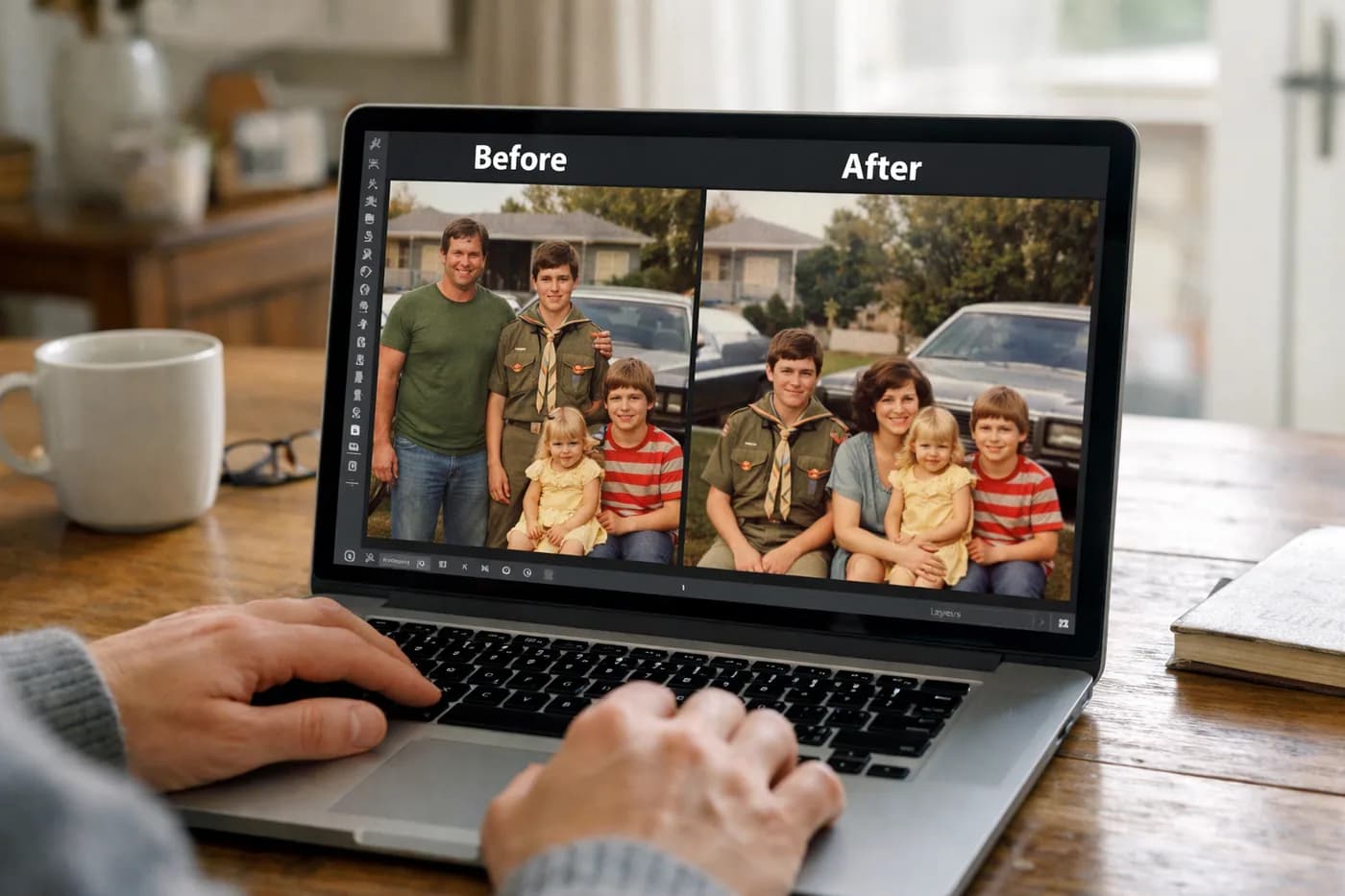
After processing, the tool shows you a before/after slider. Here you can check how the photo looks without the person. If you spot anything odd (unnatural edges, repeated backgrounds, etc.), you can redo the selection or tweak your adjustments.
Step 4: Download and always compare your restored photo
Save the finished image to your computer or phone. Naiara keeps all your restorations in a private history, so you can download them anytime. Before you’re done, compare the original and edited photo using the slider to make sure the background looks natural and there are no visible flaws.
Common mistakes when removing a person from a photo and how to avoid them
- Selecting too large an area: Only highlight the person, avoiding important background areas so the AI works precisely.
- Not checking the background: Watch for repeated patterns or distorted backgrounds. If something looks off, redo your selection or use the "restore" option to improve the background.
- Very low-resolution photos: If your image is too pixelated, use the resolution enhancement feature first to make removal easier.
How do you know if the result is perfect?
The best sign is when no one can tell someone was removed. Check these points:
- The background looks consistent and undistorted.
- No traces of clothing, shadows, or hands from the removed person.
- The focus and lighting in the edited area match the rest of the photo.
If you want your image ready to print or share, see our creative ideas for printing and framing restored photos or the guide to printing restored photos.
Frequently asked questions about removing people from photos
How do I remove person from photo?
Upload your image to an AI tool, select the person, and let the system erase them and fill in the background. You can adjust your selection if needed.
Can you remove person from photo online?
Yes, you can easily remove a person from a photo using AI-powered online tools. No technical knowledge is needed and results are instant.
How to remove person from photo online free?
Try Naiara’s free restoration: upload your photo, select remove person, and download the result—no cost or credit card required. You can try any image.
How to remove person from photo on iPhone?
Visit a site like Naiara from Safari on your iPhone, upload your photo, and use the person removal tool. The process is quick and works perfectly on mobile.