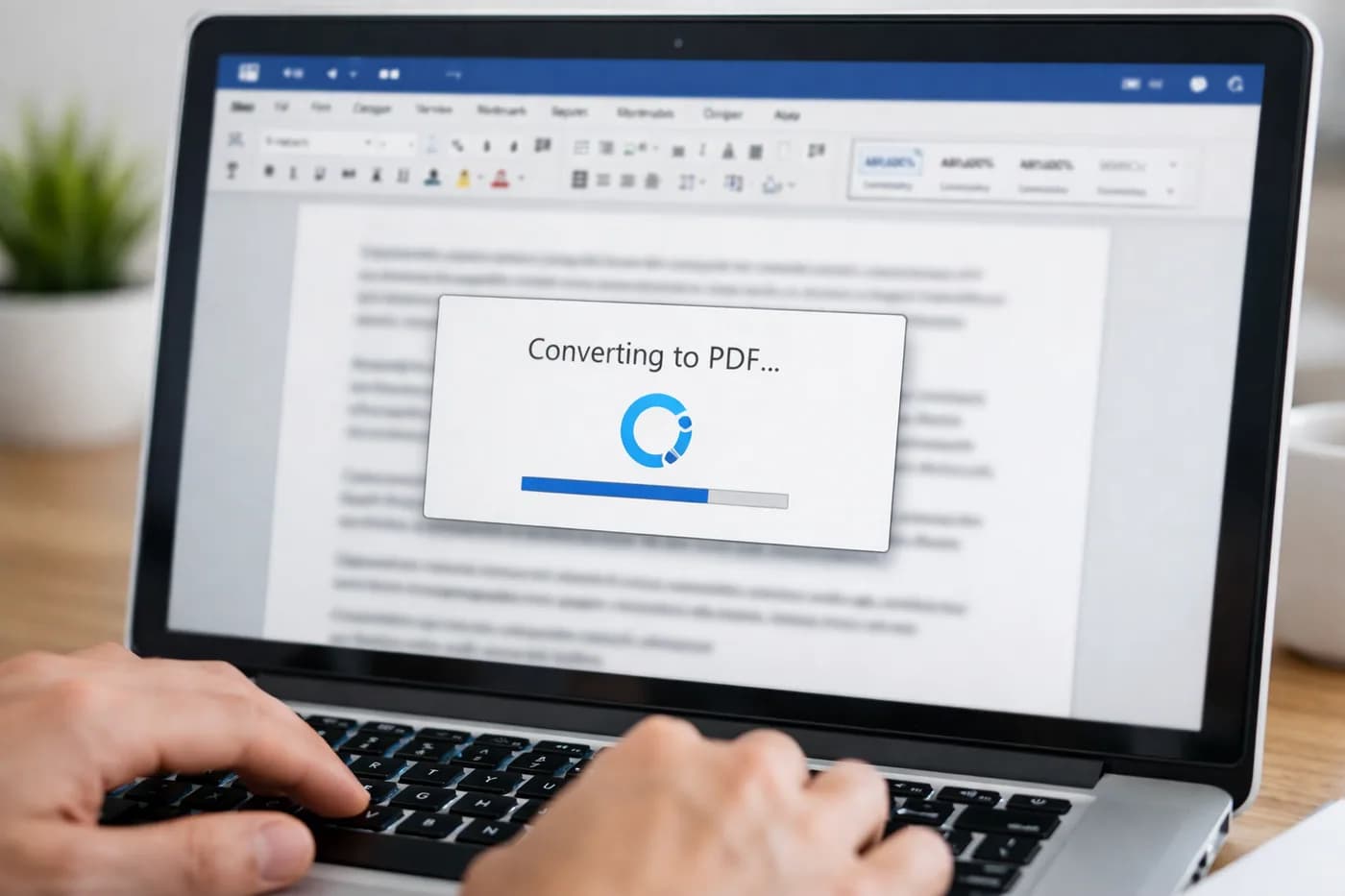
If you want to convert Word to PDF, you can do it in seconds and keep every detail exactly as it was. This is the simplest way to submit a grant application that demands PDF format, send a contract where spacing must be precise, or share a report that needs to look perfect on every device. Below you’ll find the fastest and most reliable route to convert Word to PDF free. No installs. No formatting headaches. The end result looks just like your original file.
Why convert a Word file to PDF?
Seeing a .docx open on someone else’s laptop only to find the layout in pieces is more common than people admit. Indents drift, headers drop to odd places, and images wander to the next page. In some cases, it’s not just annoying—a job portal or government site refuses any file that isn’t PDF, or you’re dealing with someone who doesn’t use Microsoft Office at all. These are the situations that make public agencies, job boards, and countless application forms require PDFs: everyone knows a PDF keeps the document’s layout locked, with no chance of a surprise or last-minute edit.
Quick fix: convert your Word to PDF in seconds
No need to sift through menus or worry about which version of Word you used last time. With Naiara’s online converter, you drag in your Word document and download the PDF—nothing else needed. Both .docx and .doc are supported for free, and you won’t be asked for your name or email address.
Step-by-step guide to convert Word to PDF free
- Pick out the Word file from your laptop, phone, or cloud storage—wherever you have it saved.
- Open the converter and drop your file into the box.
- Make sure PDF is chosen as the output (it almost always is, but it doesn’t hurt to check).
- Download the finished PDF. Naiara deletes your original file from the server right after.
This method works on any device: desktop, tablet, iPhone, Android, whatever you use. There’s no installation and nothing to set up. Files are wiped immediately after conversion—they’re never stored.
PDF is designed to eliminate the usual formatting surprises. Fonts, tables, graphics, even page lengths: all freeze into the exact look you built, regardless of the app that opens them.
Naiara’s converter doesn’t watermark your files or downgrade image quality. The PDF you get usually matches your Word file in size, though a document packed with photos might be somewhat larger as a PDF. If you end up with a hefty file, compress the PDF later using a free compression tool, no extra downloads required.
Other ways to convert Word to PDF on your computer or phone
If using a web converter isn’t your preference and Microsoft Word is already installed, just save as PDF—in File > Export > Create PDF/XPS. In Google Docs, you’ll find the PDF option under File > Download > PDF. On mobile, WPS Office or Word’s app usually offers PDF export, though occasionally the free version puts a watermark or limits features.
With Naiara’s online tool, there’s no license management, updates, or installing anything. Everything happens right in your browser. When working with especially large documents, consider downsizing images or removing blank pages before converting.
Common mistakes when converting Word to PDF (and how to avoid them)
- Missing or misplaced images: Pasting images directly into Word is best; linked images can disappear in the PDF. Always save a copy of your file first.
- Fonts not displaying correctly: It’s safer to stick to fonts like Arial or Calibri, or embed the fonts in Word (Options > Save), so the PDF never swaps them out.
- PDF file too large: If you notice the PDF is much bigger, compress it after or shrink large images before converting.
- Macros or forms in the document: Macros won’t make it into PDFs, and Word forms may stop behaving as you expect. For interactive PDFs, specialized tools may help, but ordinary documents don’t require this.
Practical tips for your converted PDF documents
Always page through your PDF before sharing, especially if your file uses complex tables or big charts. Need to combine multiple PDFs? Use Naiara’s PDF merge tool. Working with scanned images? The guide on how to digitize old photos with your phone can help you prepare them for the best PDF quality.
Frequently asked questions about converting Word to PDF
How to convert Word to PDF?
Upload your Word file to Naiara’s online converter and get the PDF instantly. No registration or installation required; it’s quick and fully automatic.
Can you convert Word to PDF for free?
Naiara’s converter lets you turn your Word file into a PDF at no cost. Alternatives include Google Docs or Word itself, though free apps may restrict functions or add watermarks.
Does converting to PDF reduce document quality?
Text and layout remain unchanged. If images are placed directly in Word, their quality is preserved. For a smaller file, compress the PDF after you finish.
.docx and .doc files are both supported. If you’re working with very old formats, open and resave as .docx before converting.
Is Naiara’s converter safe for confidential documents?
Files are processed automatically, then deleted from the server as soon as you download the PDF. No storage or manual review—your privacy stays protected.