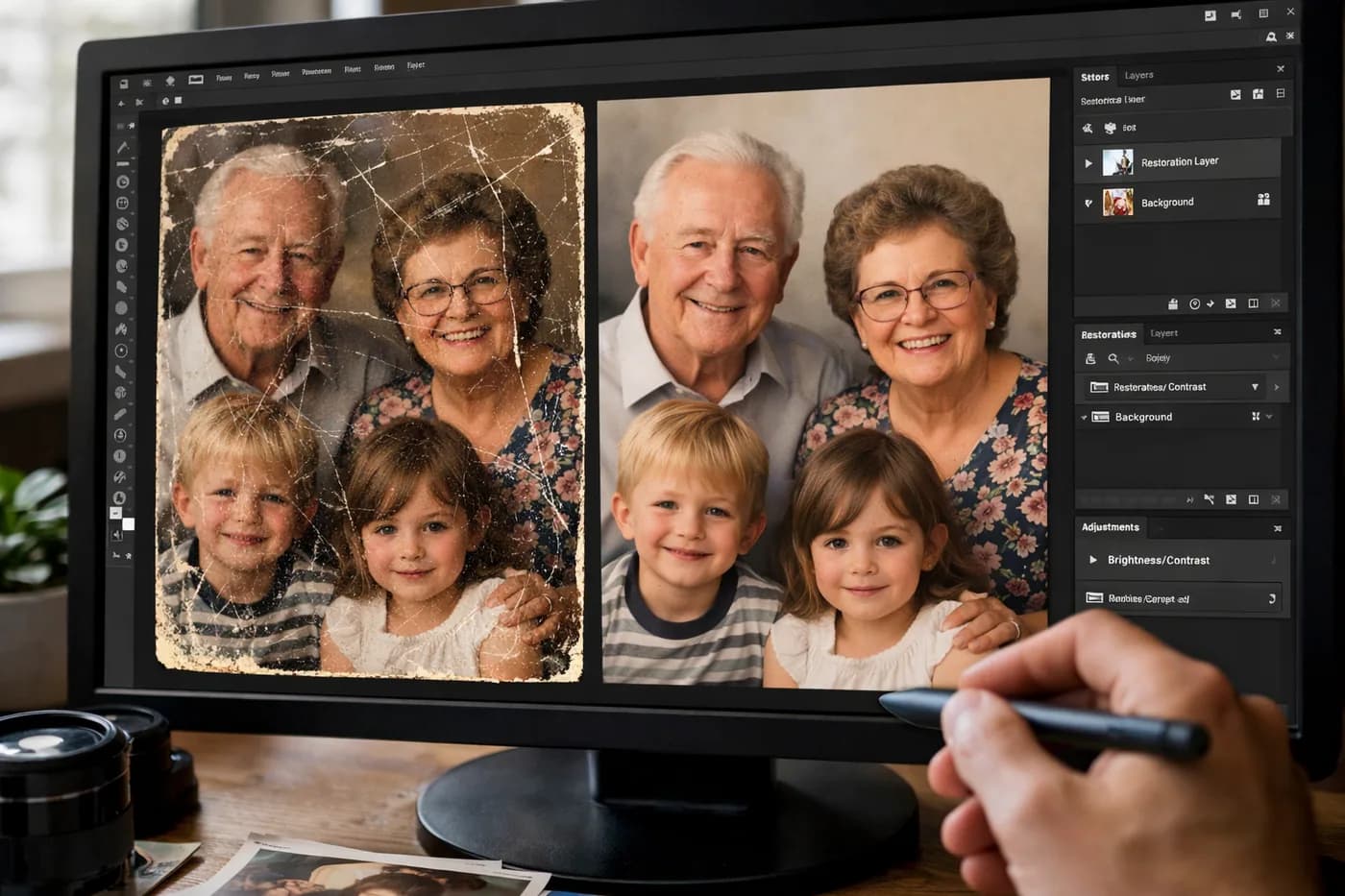
If you’re searching for how to remove scratches from photo online free, here’s the quick answer: with today’s AI-powered tools, you can erase scratches and restore damaged details in your photos just by uploading the image—no technical skills needed, and it only takes minutes.
How to Identify Scratches and Other Damage on Old Photos
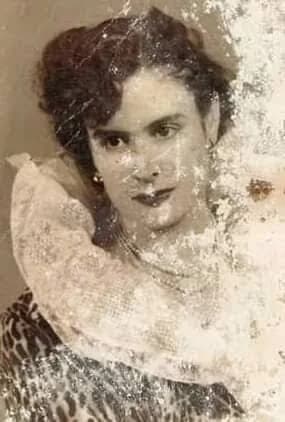
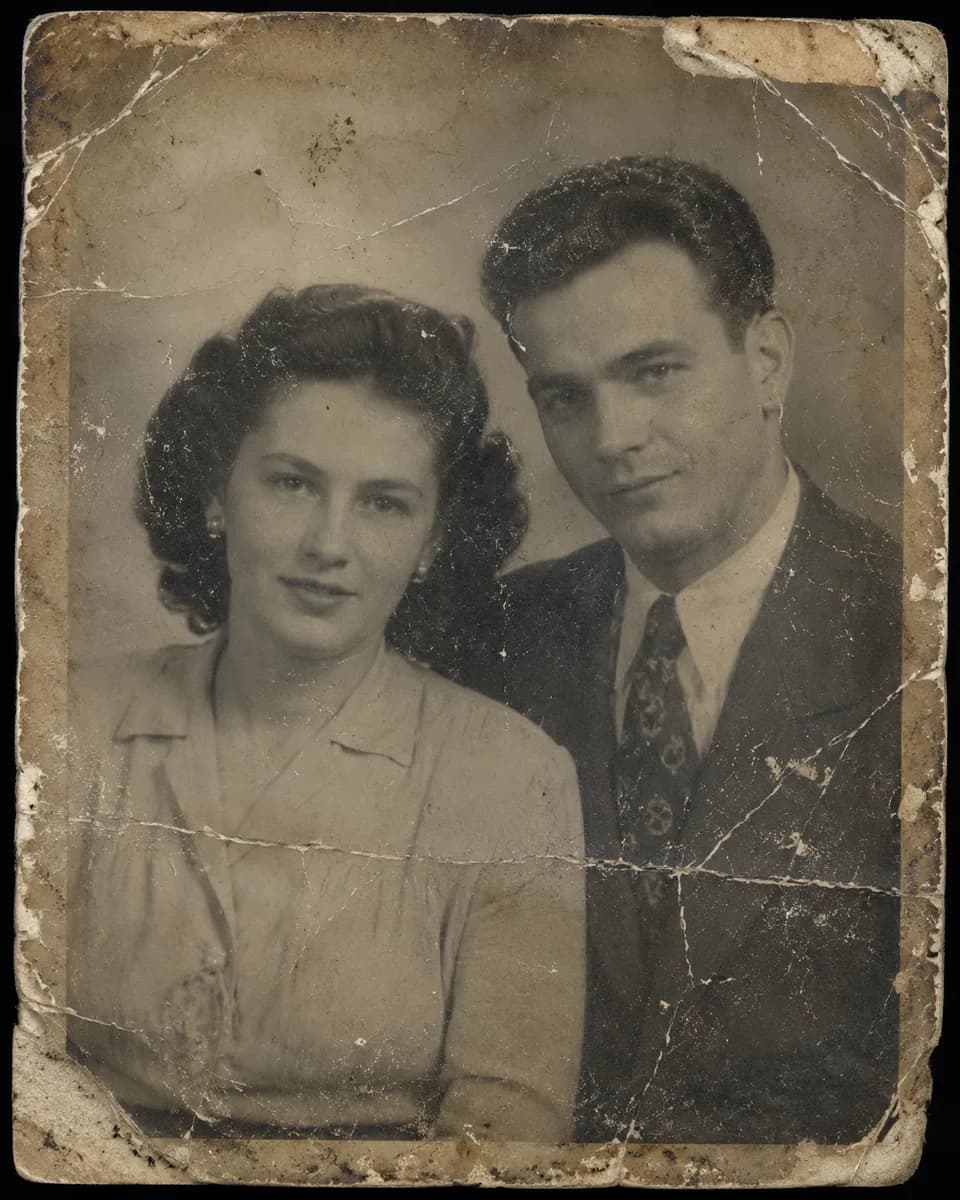
Scratches appear as lines or marks—usually white or silvery—that run across the surface of your photo. They’re common with age, frequent handling, or poor storage. Besides scratches, old photos may have stains, creases, or torn sections. It’s important to tell apart surface scratches (easier to fix) from deep ones that actually remove part of the original image.
Scratches are most noticeable in dark or plain areas and can impact faces, backgrounds, or key details. If you’re unsure what type of damage you have, check if an area is completely lost (harder to recover) or if there’s just a light line over the original color.
Why Do Scratches Appear on Old Photos?
Most scratches on old photos are caused by:
- Frequent handling (removing from albums, passing around)
- Storage in humid or dusty places
- Contact with rough or hard objects during scanning
- Cleaning attempts with the wrong materials
Some scratches are just on the surface, while others are deeper and may erase parts of the image. This affects how much can be restored, but in most cases, modern technology can recover much of the original detail.
What Can (and Can’t) Be Recovered When Removing Scratches from Photos?
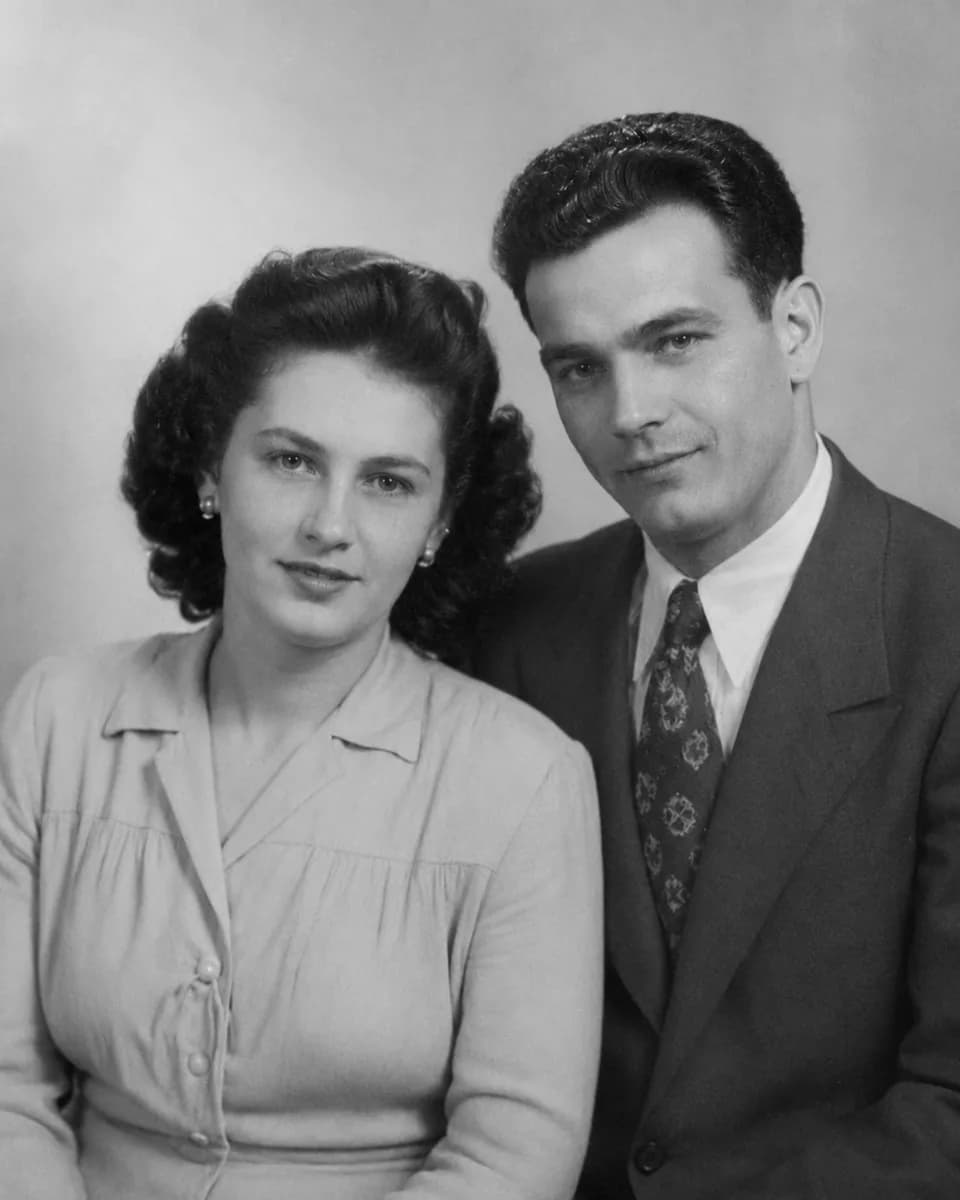
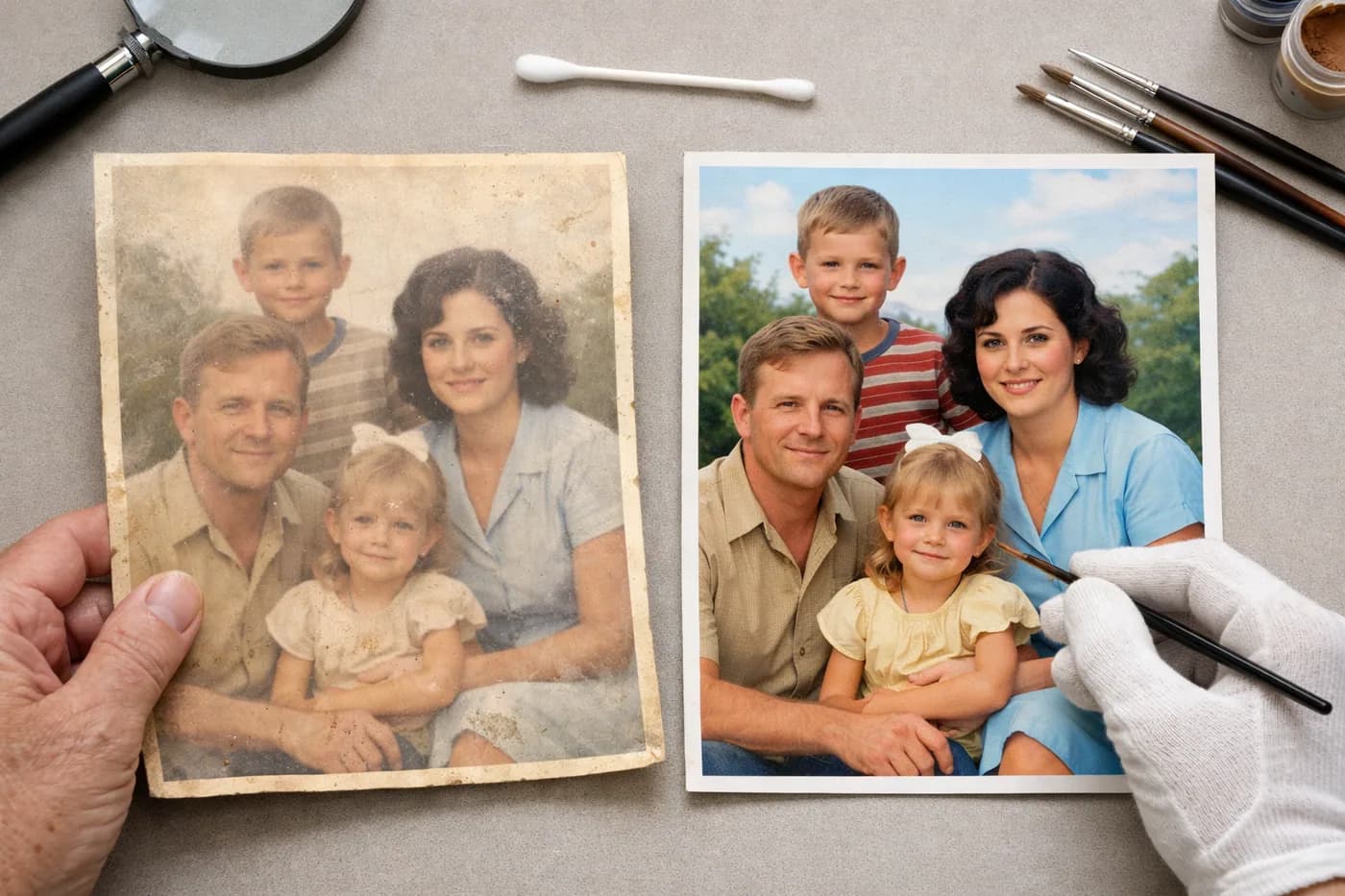
Digital restoration can visually remove scratches, even out color, and rebuild damaged areas. However, if a scratch has completely erased a part of the image—like an eye or a face—the reconstruction will be approximate and depends on what’s left in the rest of the photo.
AI excels at filling in lines and backgrounds, rebuilding textures, and restoring details based on context. But there are limits: completely missing areas may look smoother, but if there’s no reference, the original information can’t be fully brought back.
How to Remove Scratches from Photo Online Free with AI
Today, removing scratches from photo online free is simple with apps like Naiara. There’s nothing to install and no editing experience required. The process is:
- Scan your photo at high resolution, making sure it’s clean and evenly lit.
- Upload your image directly to Naiara’s website to get an automatic restoration in minutes.
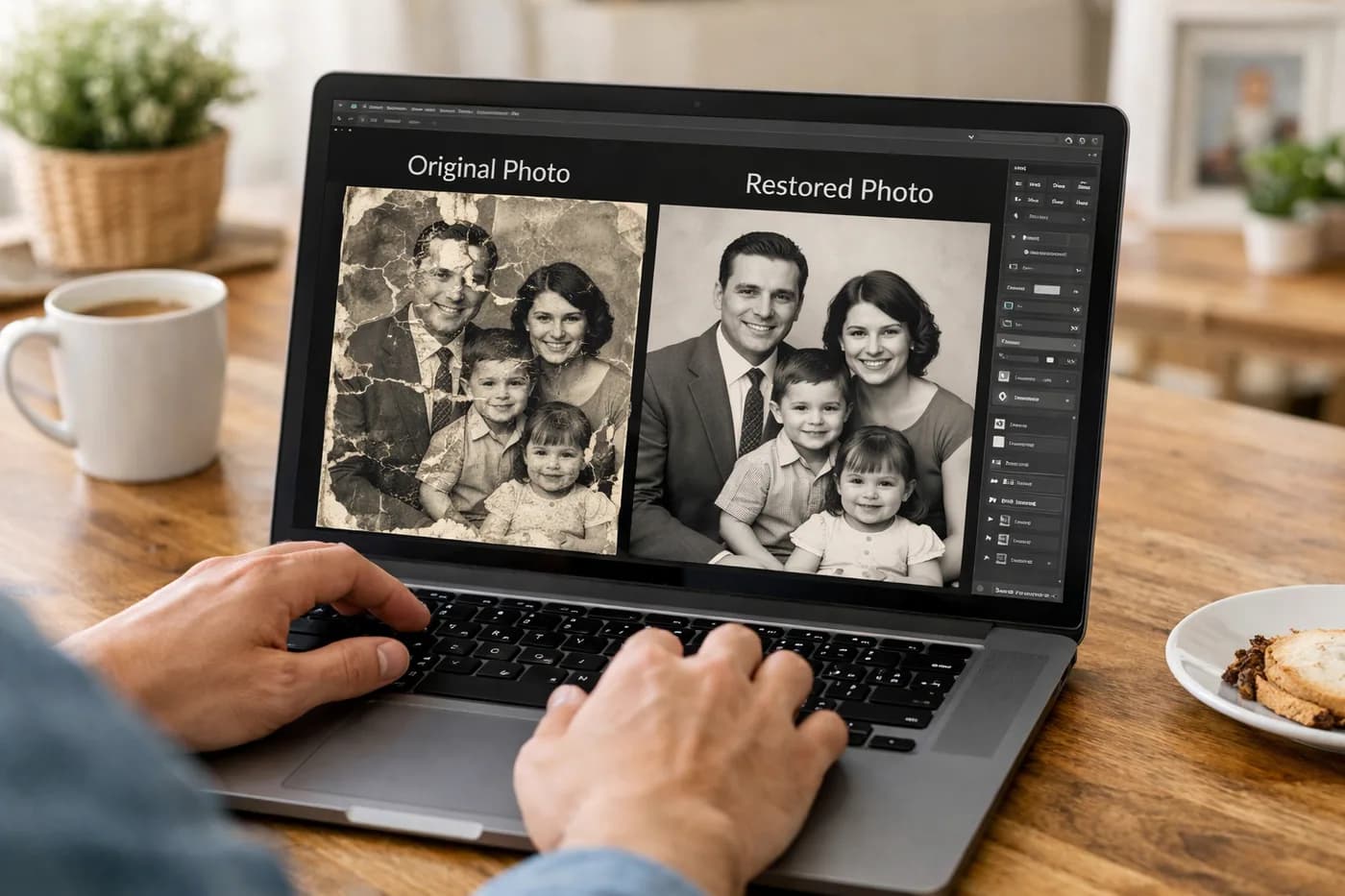
- Compare before and after using the slider to see how scratches are erased and details recovered.
- Download your restored photo in high resolution, ready to print, share, or keep safe.
Your first restoration is free and requires no credit card. If you have multiple photos, you can buy credit packs with no subscription—perfect for restoring a whole family album or box of old memories.
For even better results, combine scratch removal with other features like colorizing black and white photos or upscaling resolution.
Manual Alternatives: Removing Scratches with Classic Editors
If you prefer a manual approach and know your way around programs like Photoshop, you can use the clone or patch tool to cover scratches. This method can be precise but is time-consuming—especially on complex areas like faces or textured backgrounds.
- Open your scanned photo in your image editor.
- Use the clone or patch tool to copy healthy sections over the scratch.
- Match color and texture so the fix blends in seamlessly.
- Always save a backup of the original file before starting.
For most people without technical skills, AI gives faster, more natural results—especially with photos that have lots of scratches or complex damage. If you’re deciding between manual and automatic restoration, check out this detailed comparison of both methods.
How to Prevent Scratches from Getting Worse
Once your photo is restored, it’s crucial to keep both the original and the digital copy safe:
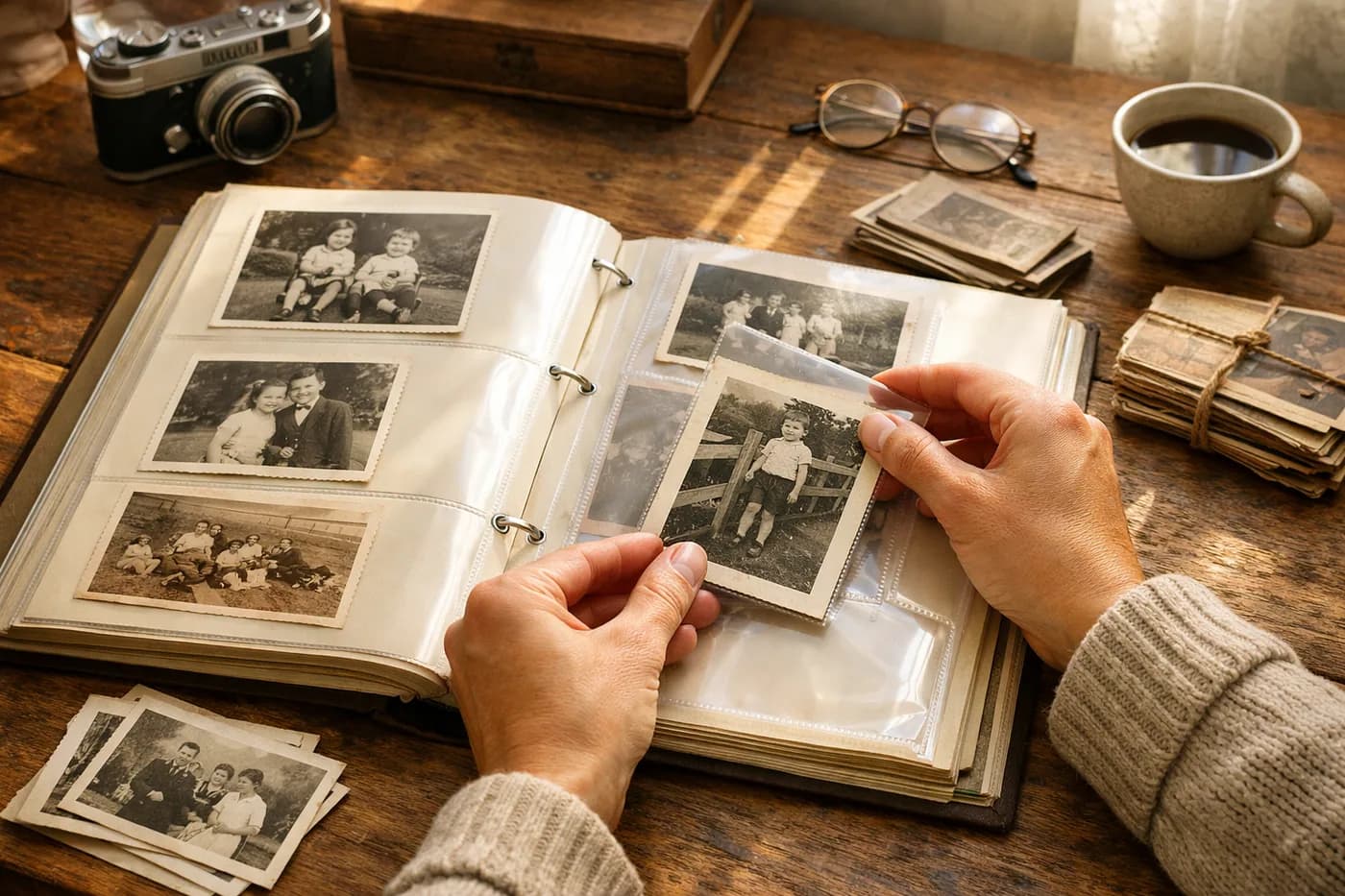
- Store photos in acid-free envelopes or boxes, away from direct light and humidity.
- Handle originals with clean, dry hands.
- Back up digital versions on several devices or in the cloud.
- If you want to enjoy your memories on paper again, check out these tips for printing and framing restored photos.
What to Do After Restoring Your Photos
Restoring an old photo is just the beginning. You can use it to create a refreshed family album, give a restored copy as a special gift, or simply preserve that memory in the best possible quality. For more inspiration, discover creative ideas for printing and decorating with your restored photos.
Frequently Asked Questions About How to Remove Scratches from Photo Online Free
Is it possible to remove scratches from photo online free?
Yes, with Naiara you can try a free restoration with no credit card required. Other tools may offer limited trials but often require sign-up or add watermarks.
Are AI results better than Photoshop?
For most users, AI delivers fast, natural results—especially on photos with many scratches or complex damage. Photoshop offers more control but takes skill and a lot of time.
What types of scratches can be digitally removed?
Most surface scratches and lines can be erased with AI. Deep damage or fully erased areas may be partially recovered, but original details are reconstructed only approximately.
Can I restore multiple photos using the same method?
Yes, you can restore as many photos as you like by purchasing credit packs. There are no subscriptions and credits never expire—ideal for digitizing entire family albums.
Scan your photo in high resolution as a JPG or PNG. Avoid blurry or very small images for the best results when removing scratches.